License Activation
Licensing Overview and Activation Purpose
SafeSquid requires valid licensing to enable full functionality and continuous availability. Two licensing options are available:
- Free Licensing: Always free; supports core functionality without time restriction.
- Commercial Licensing: Includes real-time threat intelligence updates, 365-day disaster recovery and backup, and email-based support.
License activation is completed after installation and is essential for activating subscription-based features and ensuring platform synchronisation.
Activating multiple SafeSquid instances using the same activation key enables synchronisation of SSL certificates and configuration files across nodes.
Readiness Checklist
Client-Side Preparations
- Ensure the SafeSquid server has unrestricted outbound Internet access.
- Allow traffic through the firewall to the following endpoints and ports:
Licensing and Update Services
| Host | Port | Purpose |
|---|---|---|
| api.safesquid.net | 443 | License activation |
| swgupdates2.safesquid.net | 443 | Subscription, malware definitions |
| swgupdates.safesquid.net | 80 | Seqrite updates |
| sslupdates.safesquid.com | 443 | SSL certificate updates |
| category.safesquid.net | 443 | Category DB updates |
| download.quickheal.com | 80 | Virus signature updates |
URL Categorization Engines
| Host | Port | Path |
|---|---|---|
| prourl.itsecure.co.in | 8080 | /URLCategorizerService/URLCategorize |
| encurl.itsecure.co.in | 8080 | /URLCategorizerService/URLCategorize |
| klassify.itsecure.co.in | 8080 | /URLCategorizerService/URLCategorize |
| prourl.itonlinesecure.in | 8080 | /URLCategorizerService/URLCategorize |
| encurl.itonlinesecure.in | 8080 | /URLCategorizerService/URLCategorize |
- Validate DNS resolution and establish successful HTTPS connections to each host.
SafeSquid-Side Setup
- Install and configure the SafeSquid service on the target system.
Activation Procedure
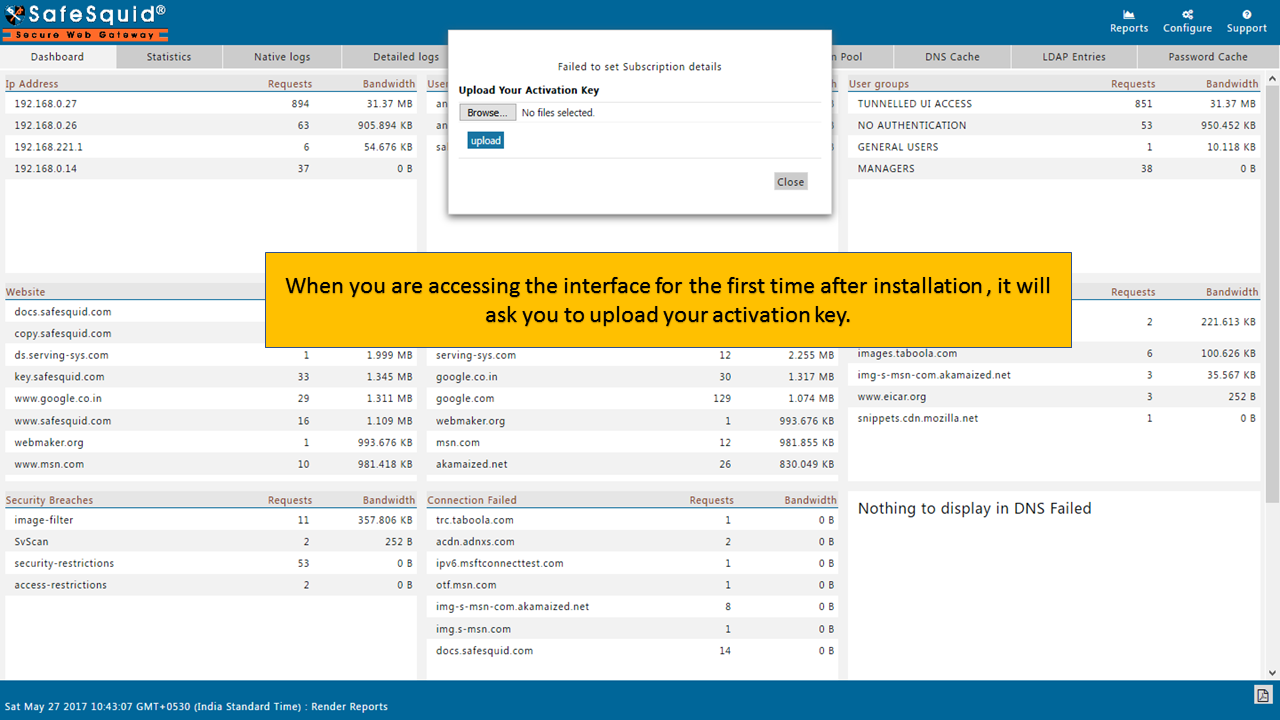
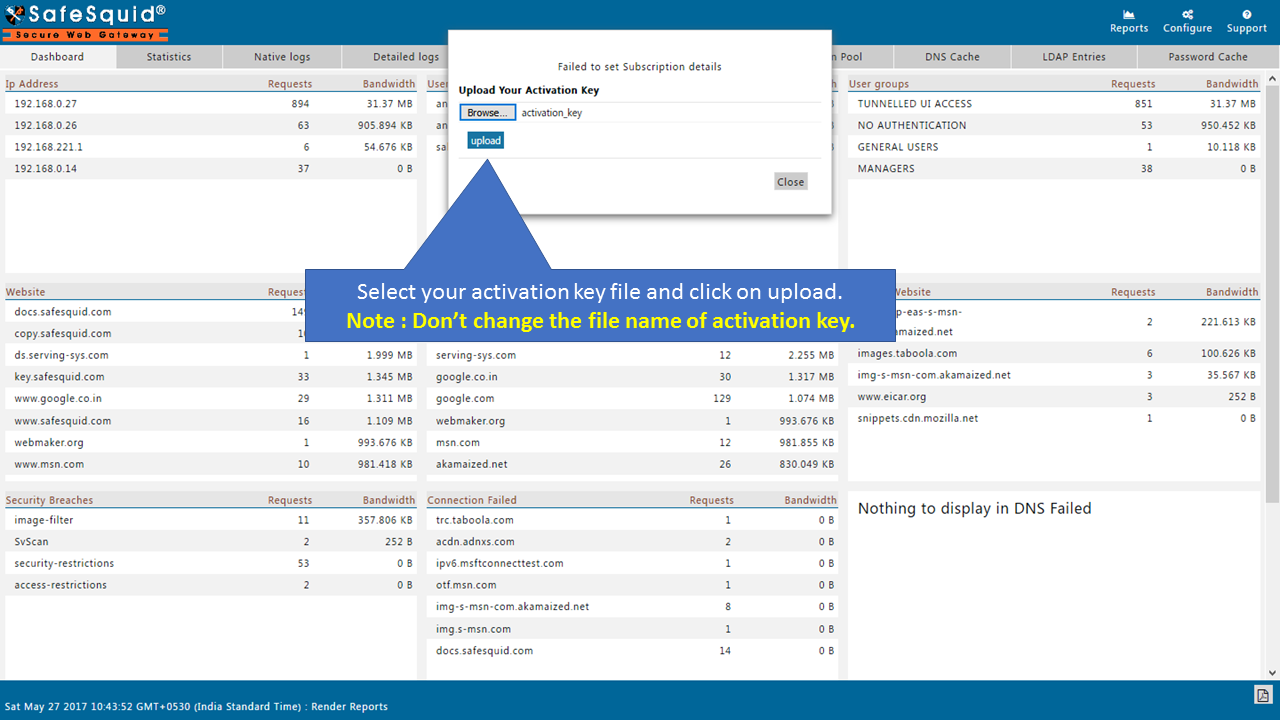
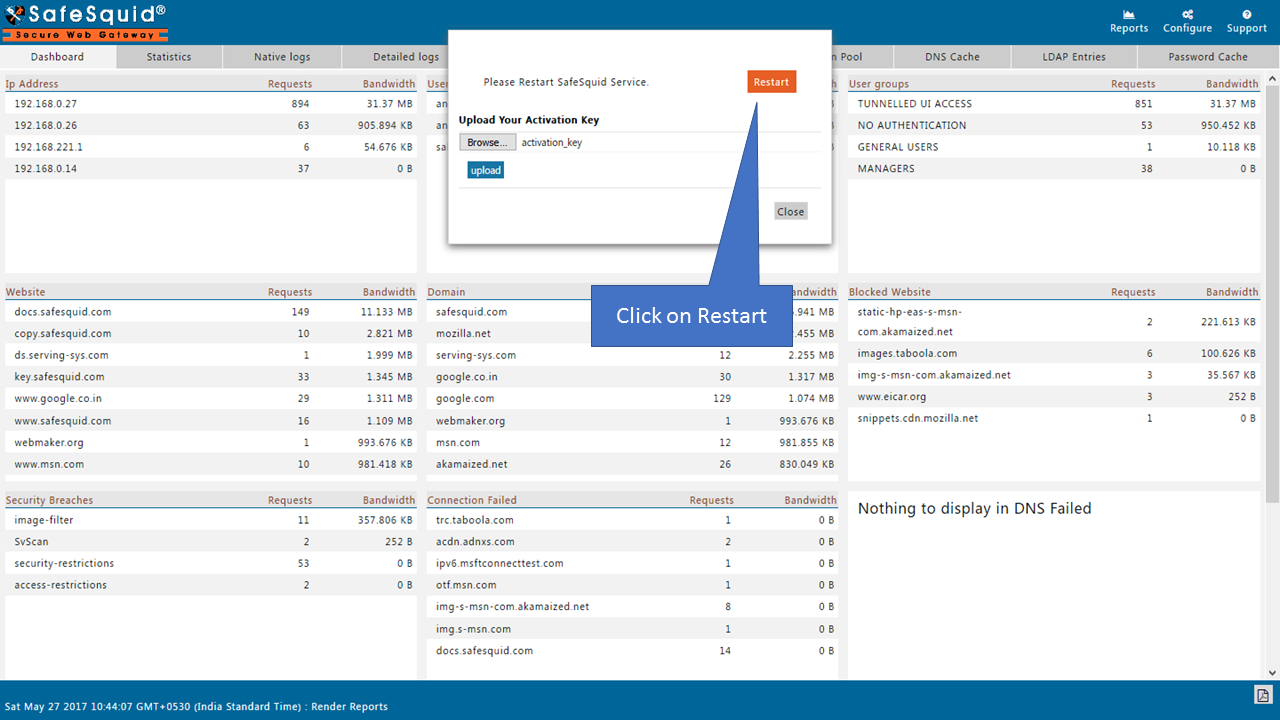
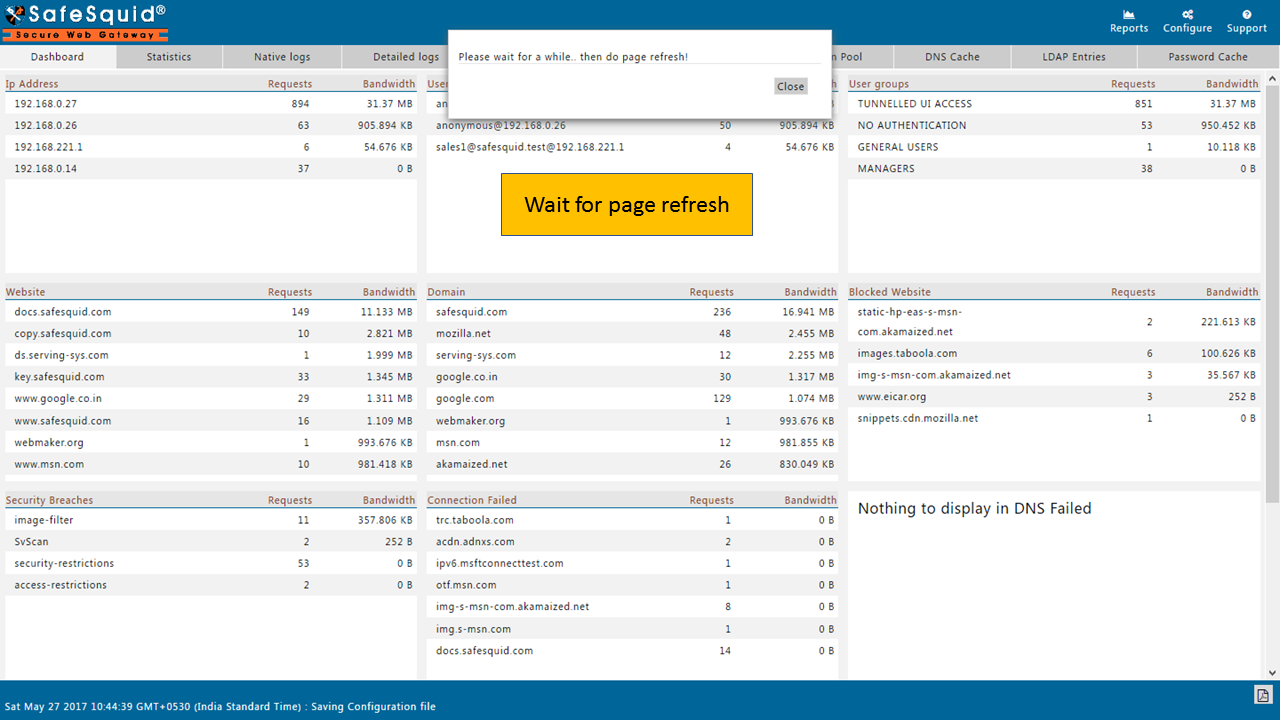
Upload the Activation key
First, configure browsers or network clients to route HTTP/HTTPS traffic through the SafeSquid proxy.
Validating Activation Success
-
Open a browser and go to: http://Safesquid.cfg/
-
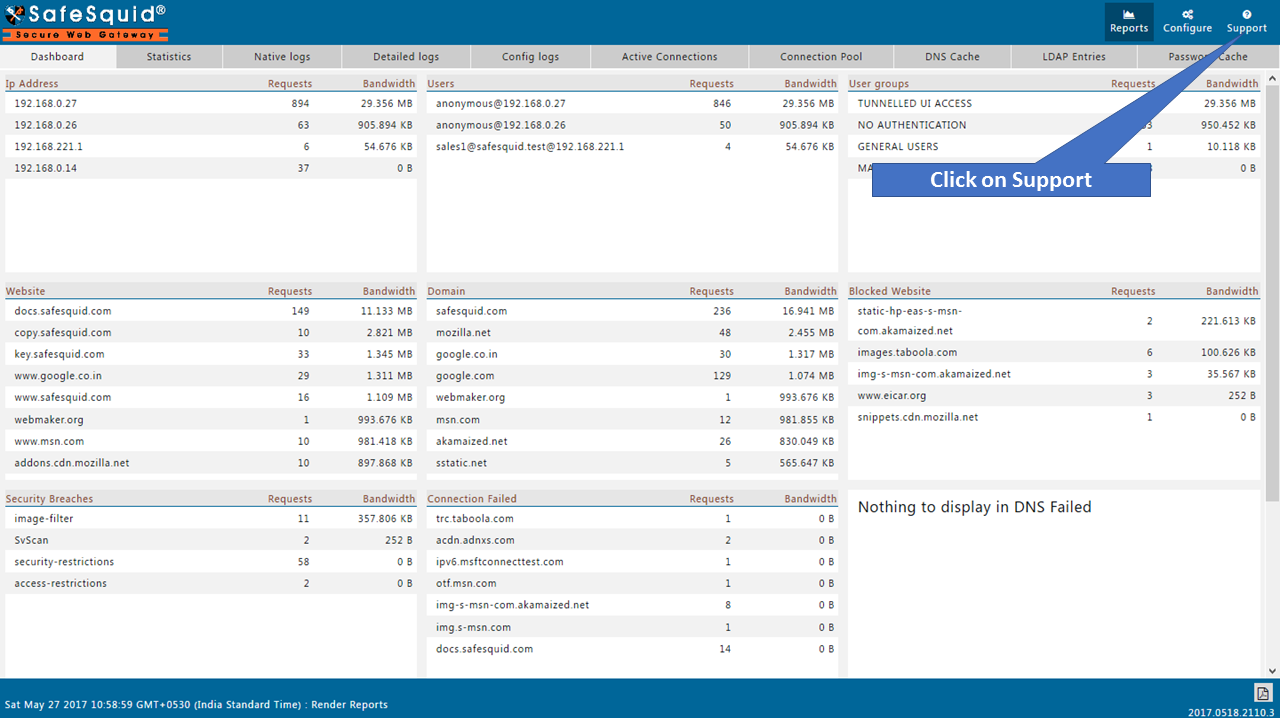
Access the Support section from the menu.
- Confirm the Activation Details section is populated.
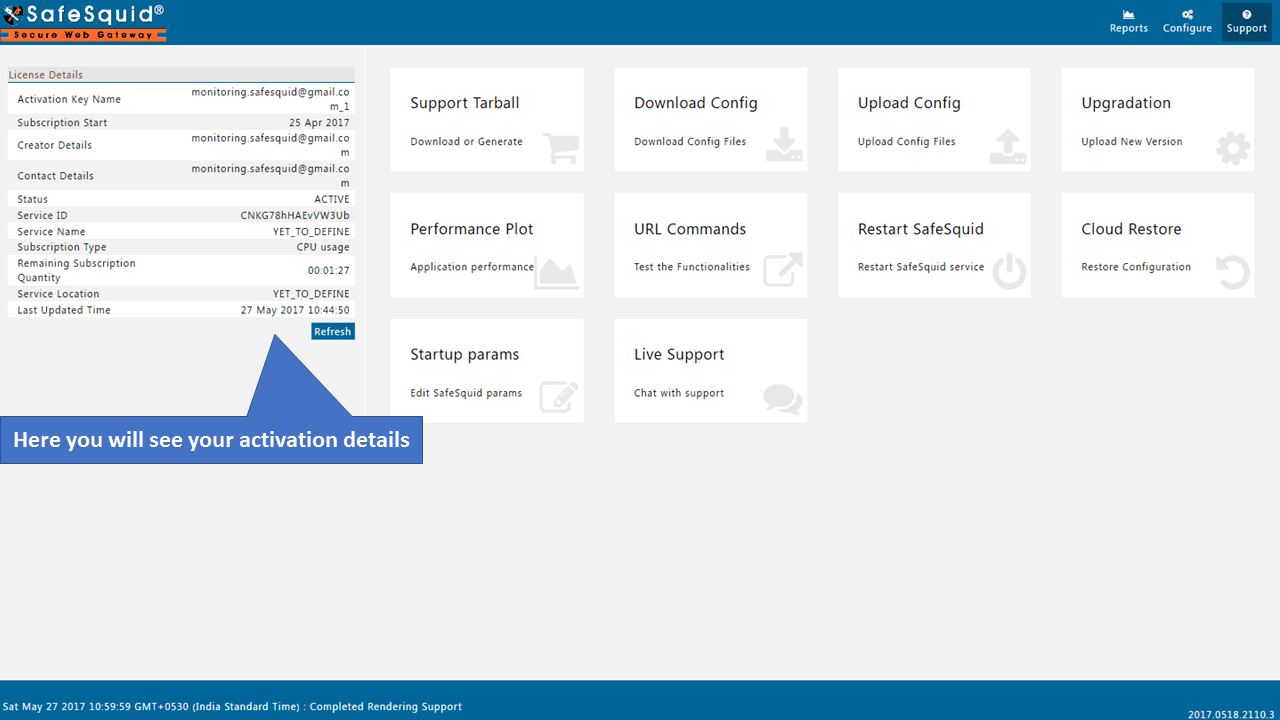
If these fields are present and valid, the license activation is confirmed.
Troubleshooting Activation Failures
- Case 1
- Case 2
- Case 3
Case 1: Activation Key Not Detected By http://safesquid.cfg/
Symptoms: After uploading the activation key, the SafeSquid UI displays "Failed to set Subscription details."
Root Cause: The activation key file is either missing or improperly named.
Resolution:
- Verify the presence of the activation key file:
ls -lrt /usr/local/safesquid/security/
Ensure a file named activation_key exists.
-
If absent or misnamed, re-upload the correct activation key file.
-
Restart the SafeSquid service:
/etc/init.d/safesquid stop
/etc/init.d/safesquid start
Case 2: Subscription Server Unreachable
Symptoms: Post activation key upload, the browser shows "proxy server refusing connections."
Root Cause: SafeSquid cannot connect to the subscription server due to network issues.
Resolution:
- Test connectivity to the subscription server:
ping swgupdates2.safesquid.net
nslookup swgupdates2.safesquid.net
Ensure the server responds and DNS resolution is successful.
-
If connectivity fails, check firewall settings and network configurations to allow access to the required hosts and ports.
-
After resolving network issues, restart the SafeSquid service:
/etc/init.d/safesquid start
Case 3: Improper Service Restart
Symptoms:
-
Even after uploading the activation key, subscription details remain unset.
-
The browser indicates the proxy server is refusing connections.
Root Cause: SafeSquid service was not restarted correctly after activation key upload.
Resolution:
-
Ensure the monit service is configured properly to manage SafeSquid.
-
If monit is not set up, manually restart the SafeSquid service:
/etc/init.d/safesquid stop**
/etc/init.d/safesquid start**